
tester

Use of cookies

We use cookies to improve and analyse your browsing experience on our web. You can accept these cookies, reject them or choose your settings by clicking on the corresponding buttons. Please note that rejecting cookies may affect your browsing experience. For more information you can consult our Cookies policy.

Configure cookies

Cookies are an essential part of how our web works. The main goal of cookies is to make your browsing experience more comfortable and efficient and to improve our services and the web itself.
Here you can find all the information about the cookies we use and you can activate and/or deactivate them according to your preferences, except for those cookies that are strictly necessary for the operation of the web. Blocking some cookies may affect your experience on the web and how the site works. For more information you can visit our Cookie Policy.

Strictly necessary (technical) cookies

These Cookies are necessary for the web to function and cannot be disabled on our systems. They are generally only set up in response to actions you may take such as requesting services, setting your privacy preferences, logging in or completing forms. You can set your browser to block or warn you about these cookies, but some parts of the web will not work. Information about Cookies.

Analytical cookies

These Cookies allow us to count the number of visits and traffic sources so that we can measure and improve the performance of our site. They help us to find out which pages are the most popular and least popular, and to see how visitors move around the web. All information collected by these Cookies is aggregated and therefore anonymous. If you do not allow these Cookies we will not know when you visited our web. Information about Cookies.

Third party cookies

These cookies are used to analyse your activity in order to show you personalised advertisements. Information about Cookies.

Accept Decline Configure cookies Confirm selected
Search
×
Notes
Search
There are no notes
  • Import classes from Microsoft Teams
  • To customise Pencil press Alt + Down Arrow
  • To customise Highlighter press Alt + Down Arrow

    Change theme

    Error - please check your internet connection...
    Back

    Blink Help

    x
    Error - please check your internet connection...

    How can we help you?

    No results

    View full manual

    Couldn't find what you were looking for?

    Please describe the issue you are experiencing and provide as many details as possible. Let us know the book, class, access device, licence code, username, used browser or if it occcurs in our app:

    Thickness:
    Font size:
    Filter
      No resources found
      Font size:
      Revision mode

      Revision mode

      Import classes from Microsoft Teams
      Classes
      Without background sound


      MANUAL INDEX

      Synchronise Microsoft and BlinkLearning

      Import Microsoft Teams classes

      How to edit the class

      How to share content


      Synchronise Microsoft and BlinkLearning

      To import classes from your MS Teams account into BlinkLearning, you will need to connect your accounts beforehand.

      For students, there are two possible scenarios:

      • If they don't have a BlinkLearning user, they don't need to do anything, as when you import your classes, users will be automatically created and connected to their Microsoft accounts. This way, they'll be able to log in using the same passwords.
      • If they already have a BlinkLearning account, they will need to connect their accounts beforehand in order for the import to take place. They'll be able to connect their accounts even if they have used different email addresses for each user.

      Go to www.blinklearning.com and sign in with your Microsoft Teams account by clicking on Connect with Microsoft

      Sign in with your Microsoft account and then click on Yes to stay logged in.

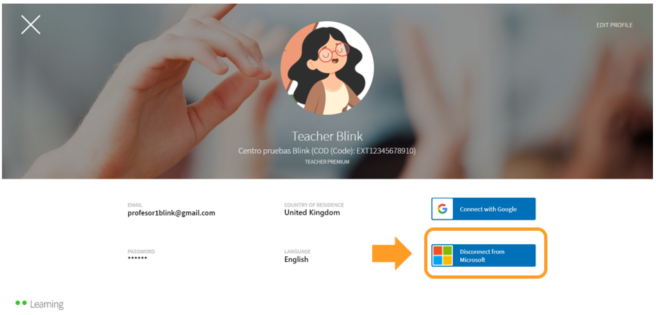
      Next, log in to your BlinkLearning user. Check that the accounts are connected from your profile, where Disconnect should appear if they are connected.

      Import Microsoft Teams classes

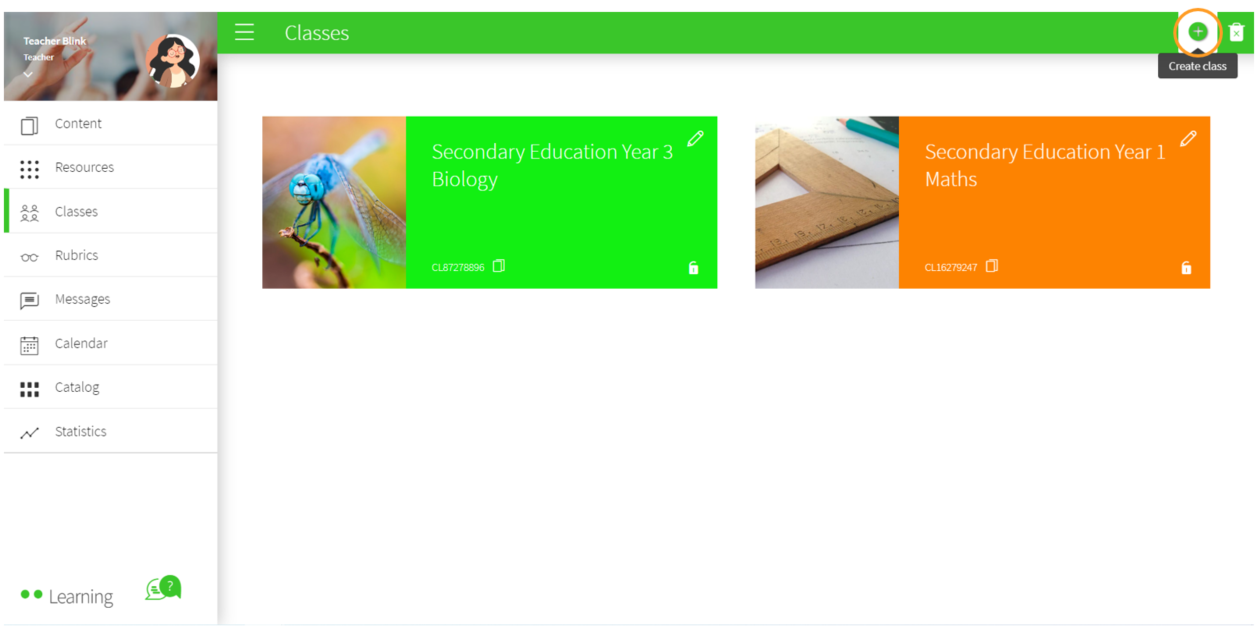
      To import the class or classes, go to the Classes section and click on  Create class
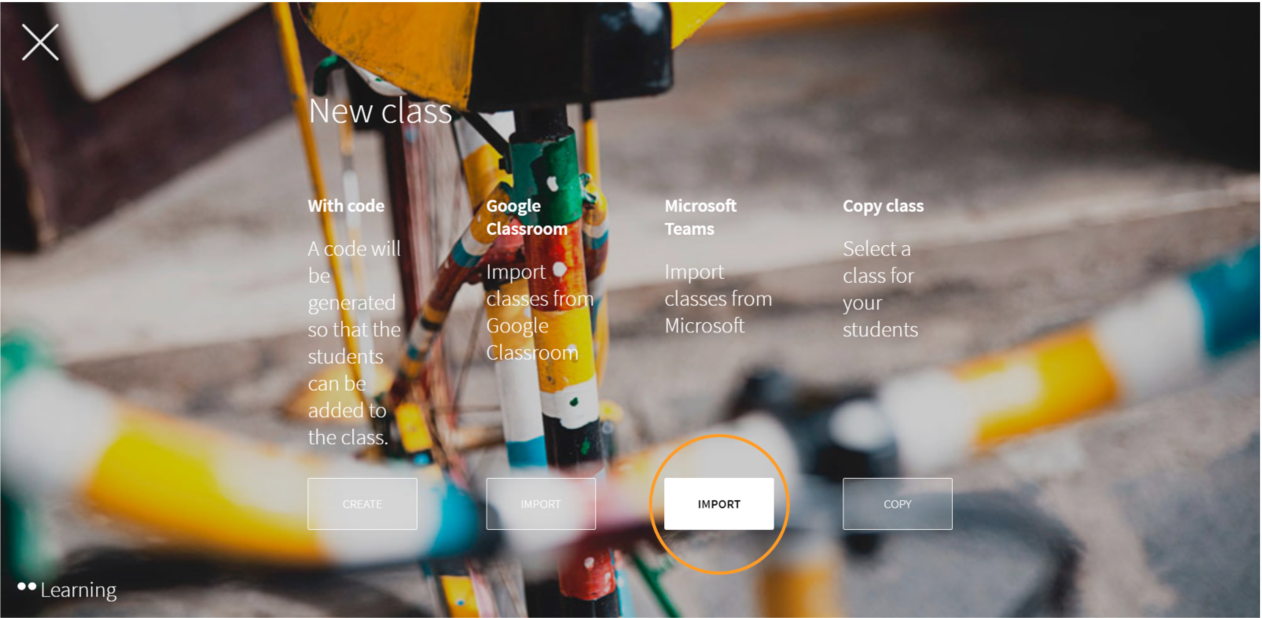
      In the Microsoft section, click on Import
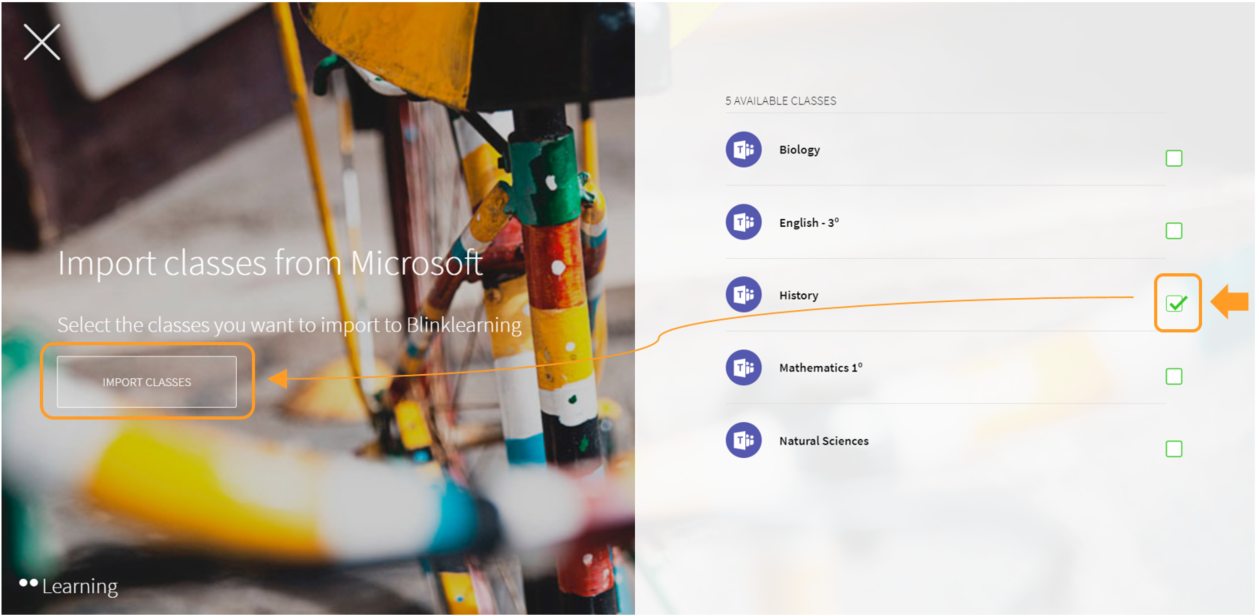
      A new window is displayed in which only the available classes in your Microsoft Teams that have not been imported before will be shown. Select the class or classes you want to import.
      The new class will then appear in the Classes section.
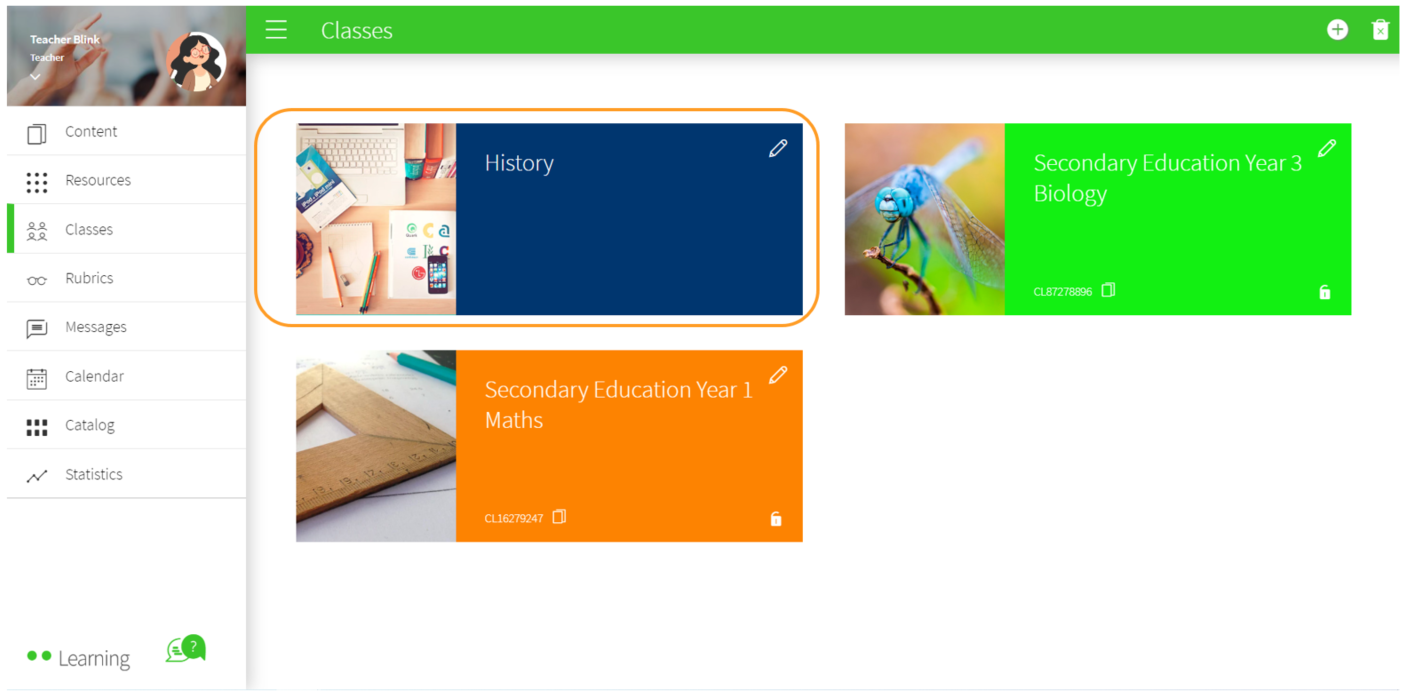
      Assign content to your class and start working with your students.
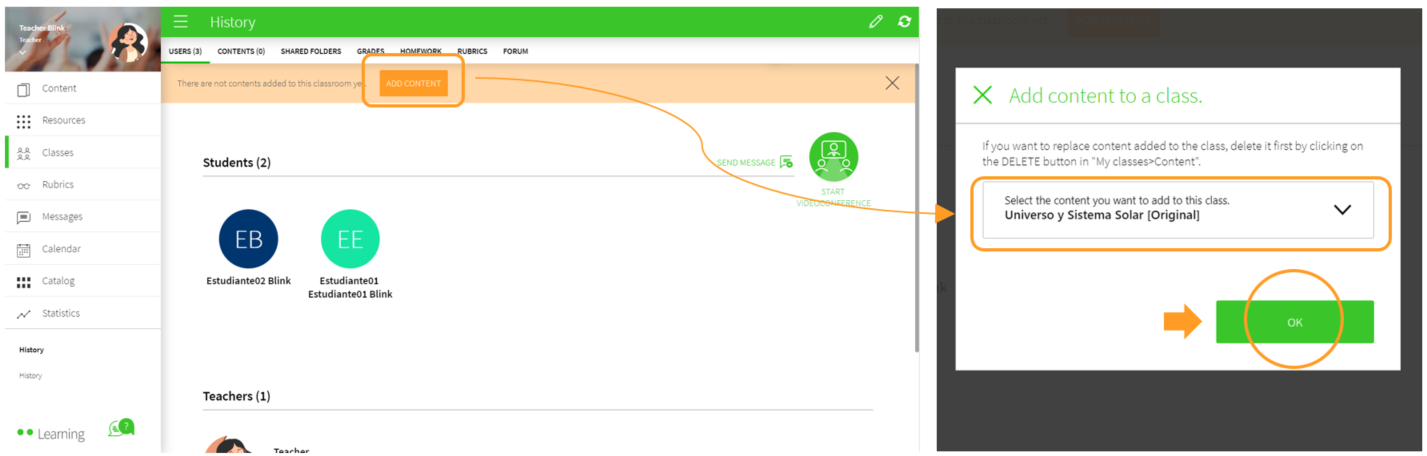
      How to edit the class

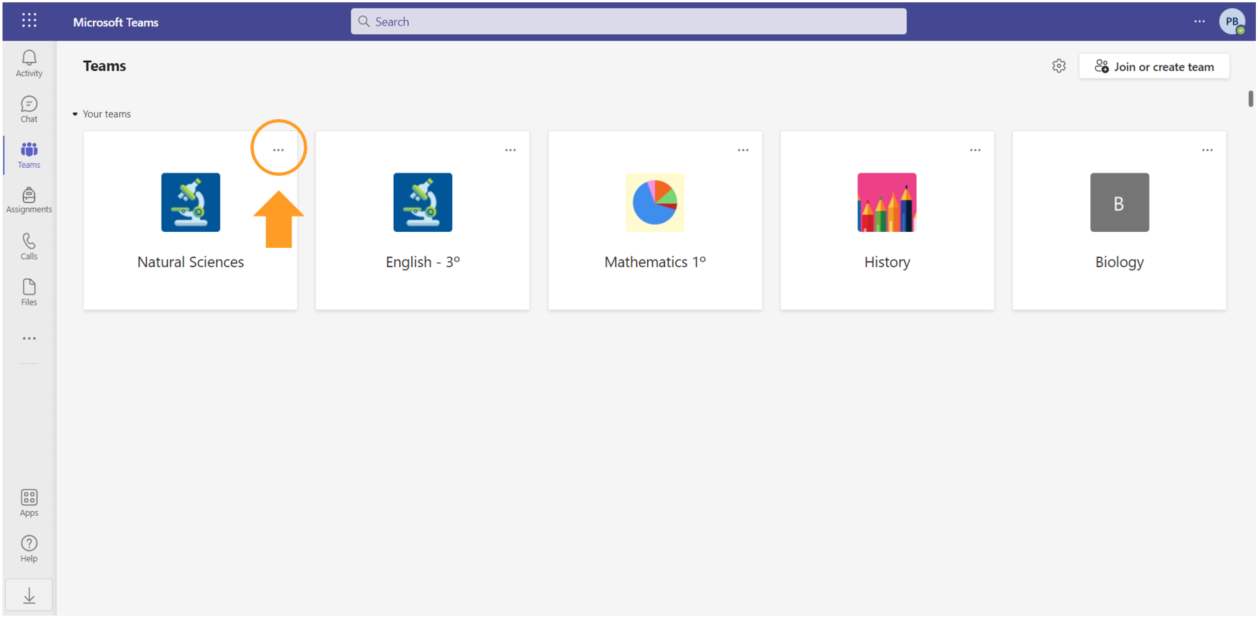
      To make changes to the class, first edit the information in MS Teams.
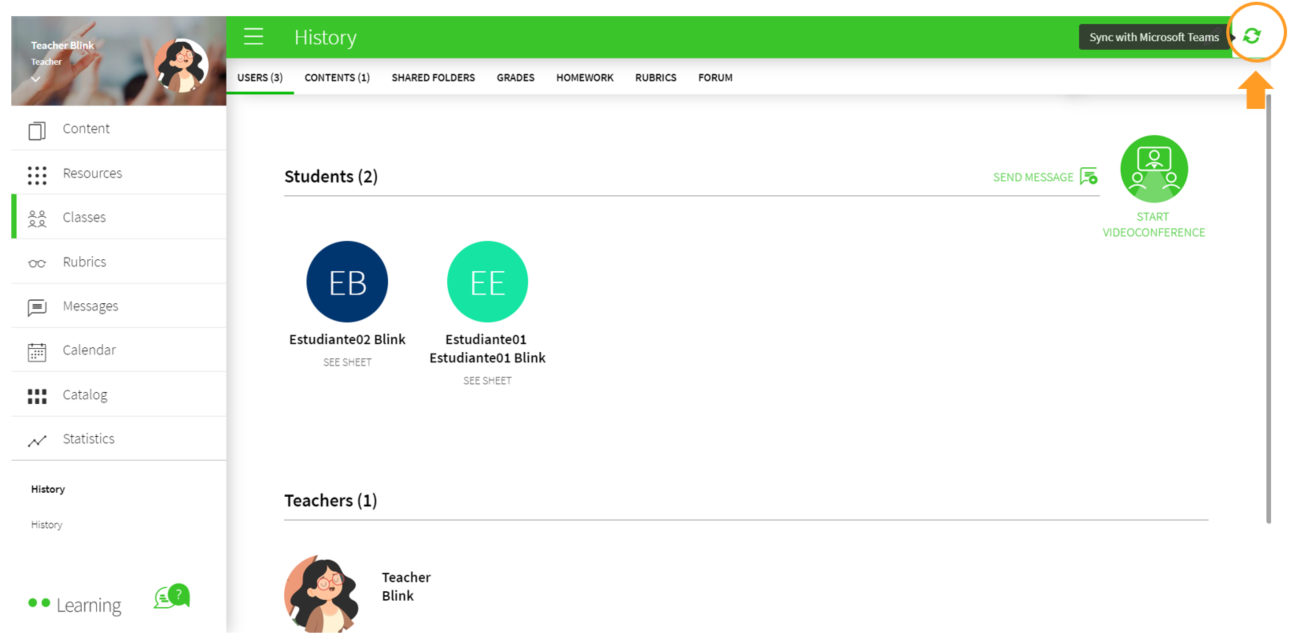
      Then synchronise the class in BlinkLearning by clicking on the Synch with Microsoft Teams button.
      How to share content

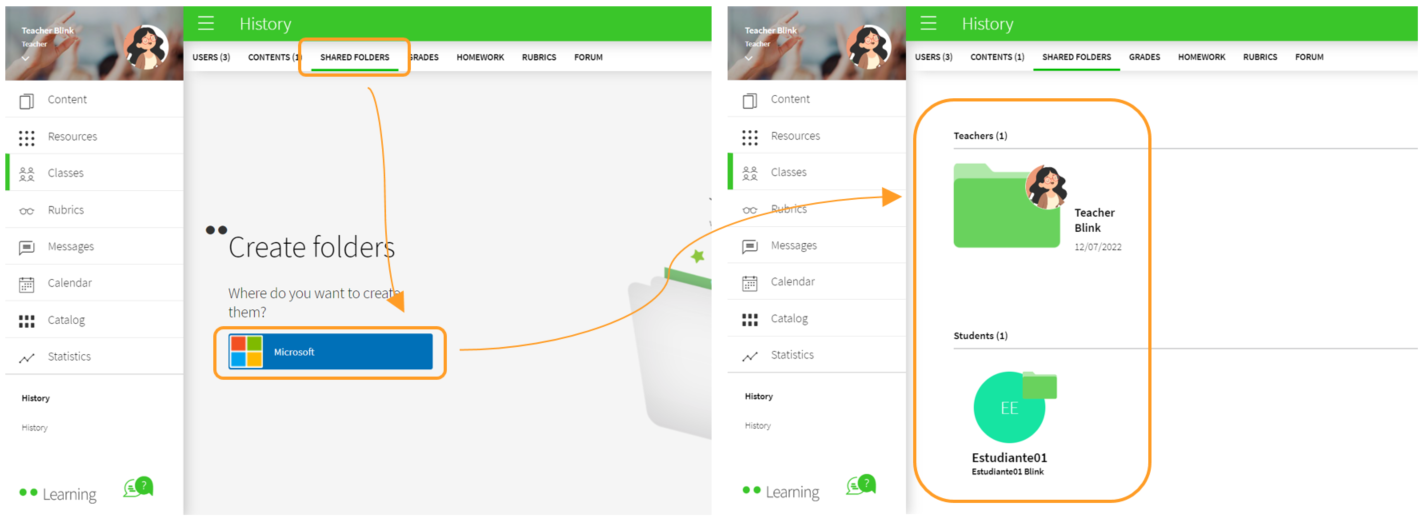
      You can link your folders from the SHARED FOLDERS tab in the classroom to share content with your students and enable your students to share content with you. Just click on the Microsoft button, and then add the content you would like to share
      It is important to check whether:

      • Your classes are correctly created in Microsoft Teams and all your students are accepted in the classes.
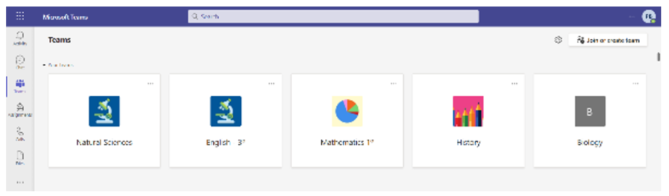
      • The students or the teacher already have a BlinkLearning account, as they must connect their accounts before importing. They'll be able to connect their accounts even if they have used different email addresses for each user.


      Do you need help?

      Send us your question to help@blinklearning.com .


      ← Ask any questions you may have about your BlinkLearning profile here

      All BlinkLearning
      video tutorials here
        →

      ,
      You have completed the lesson!

      Below is the time you have spent on the activity and the score you obtained.

      Time spent

      Score

      1. 1
        Eraser
        Rich text editor
        close